


Fixing Word numbering in legal documents shouldn’t be so difficult. Here’s advice from the experts at Snapnumbers Pro on the best way to tackle numbering nightmares.

The Word Numbering Nightmare
Every lawyer, legal assistant or document specialist who works seriously in Microsoft Word has seen it. Paragraph 14 suddenly becomes paragraph 1. VIII turns into I. Changing one number changes six others. A paragraph that looks exactly like the paragraph above it refuses to behave the same way.
The natural reaction to numbering problems in Word is to fix the number you can see. That may be exactly the wrong place to start.
The number you see on the page is usually just the symptom.
What looks like a simple “3.” on the screen may be the visible result of several different things underneath it: a list definition, paragraph style, outline level, restart instruction, numbering template, inherited formatting or some combination of them.
Two paragraphs can look identical and have completely different numbering structures. That distinction barely matters in a five-paragraph document, but it matters enormously in a 100-page agreement that several people have edited over several years.
Real legal documents accumulate history. Clauses are copied from old matters. Language arrives from clients and opposing counsel. Someone promotes a paragraph. Someone else demotes one. A section is pasted from another document. A user types a number manually because that is faster than figuring out what Word is doing.
The document may continue to look perfectly normal — until the day it doesn’t.
4 Questions to Ask Before Repairing the Number in Word
When numbering goes wrong, resist the temptation to immediately restart the list or copy formatting from a paragraph that looks right. First, ask four questions.
1. Is the number actually Word numbering?
A typed “4.” and a Word-generated “4.” can look identical. They are not identical at all.
If part of a sequence is typed text and part is native Word numbering, treating the entire thing as one list can make the problem worse.
2. Does the paragraph belong to the list you think it does?
Word can contain multiple numbering definitions that happen to produce the same visible result. Paragraphs that appear to be consecutive may not actually be connected.
3. Did the numbering problem begin somewhere else?
The paragraph displaying the wrong number is not necessarily the paragraph causing the problem. A restart, pasted paragraph or changed style 20 paragraphs earlier can surface much later.
4. What else will change if you fix this paragraph?
This is the dangerous one. The familiar experience of changing one number and watching several unrelated numbers change with it? This is a clue that you are dealing with structure, not merely appearance.
Before changing anything, you want to understand the blast radius.
A Different Approach to a Persistent Problem
I have worked around Word documents and document automation for a long time, and numbering has always been an oddly persistent problem. At FormTool, we have heard stories from professionals receiving long documents whose numbering was so tangled that repairing them seemed more expensive and less predictable than essentially rebuilding the document.
That strikes me as remarkable.
These are not exotic file formats. They are ordinary Microsoft Word documents being handled by experienced professionals.
The numbering problem led us to a different question.
Instead of starting with: “How do we make this number look right?” we started with: “What is Word actually doing here?”
That question eventually led to a new version of our Snapnumbers software, Snapnumbers PRO, which, like all FormTool software, works entirely within Word without any involvement with AI, the Internet or a Cloud. Its first job is not to change the document. It is to examine the numbering landscape and help identify what is actually there.
That distinction matters to me. A diagnostic tool should not require you to start altering a valuable document merely to discover what is wrong with it.
Snapnumbers Pro: Diagnose First, Change Second
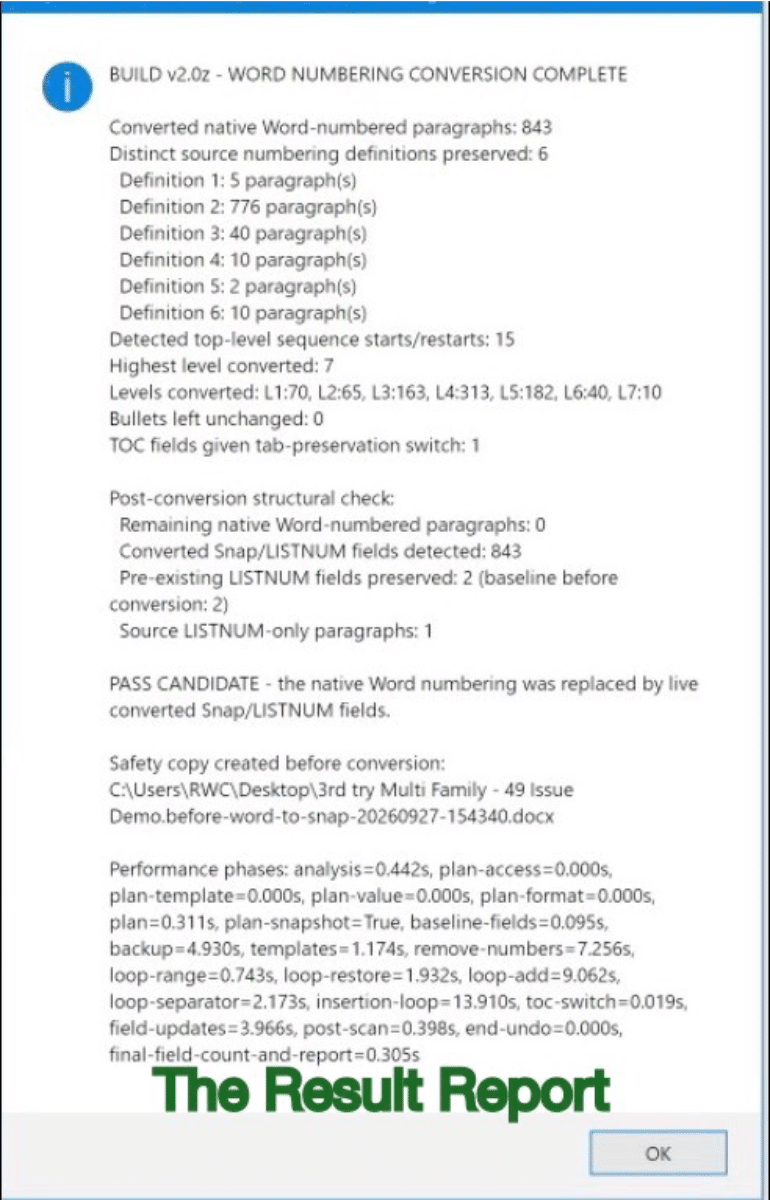
Once the numbering is understood, there is no single correct answer. Here is a report describing 843 Word-numbered paragraphs in a document of 3,400 total paragraphs after Snapnumbers PRO fixed 49 of them that prevented Word’s system from working.
The Solution?
Sometimes the right solution is simply to fix Word’s numbers and leave them as native Word numbering.
Sometimes a paragraph that looks numbered should really remain ordinary text.
Sometimes numbering should be restructured.
And sometimes the user may choose to replace troublesome Word numbering with a different numbering system.
Snapnumbers Pro supports that last option as well, but conversion is deliberately a separate decision.
Understanding comes first.
We have also treated document preservation as part of the problem rather than an afterthought. For example, before conversion, the document must be saved so the software can create an untouched safety copy beside it. If the document has not been saved, the conversion stops rather than proceeding without that protection.
That may sound like a small design choice, but anyone who has ever watched a complex legal document change in an unexpected way knows otherwise.
The Practical Lesson Applies With or Without New Software
You do not need Snapnumbers PRO to adopt the most important lesson. The next time Word numbering misbehaves, don’t immediately attack the visible number.
Instead, ask:
- Is it Word numbering or typed text?
- What list does this paragraph actually belong to?
- Where did the numbering behavior really begin?
- What else depends on the same structure?
Then make the smallest change that solves the actual problem.
Word numbering becomes much less mysterious once you stop treating the number on the page as the whole story. Because very often, it isn’t the problem. It is only where the problem finally became visible.
About Snapnumbers Pro
Snapnumbers PRO finds, explains, and fixes troublesome numbering in Microsoft Word directly inside Word and, if you choose, converts numbering to Snapnumbers, ensuring you have stable, reliable numbering throughout the document.

An annual Snapnumbers PRO license is $110 with a 45-day free trial. For more information, visit www.theformtool.com/snapnumbers-pro.
SPONSORED CONTENT. Product Spotlight showcases content provided by Attorney at Work sponsors and advertisers. This does not constitute endorsement by Attorney at Work. See Terms and Conditions for more information.