

Microsoft 365 Copilot Notebooks are like matter binders with an AI assistant attached. They can help lawyers and legal teams organize materials, ask better questions, and move from scattered information to useful work product faster.
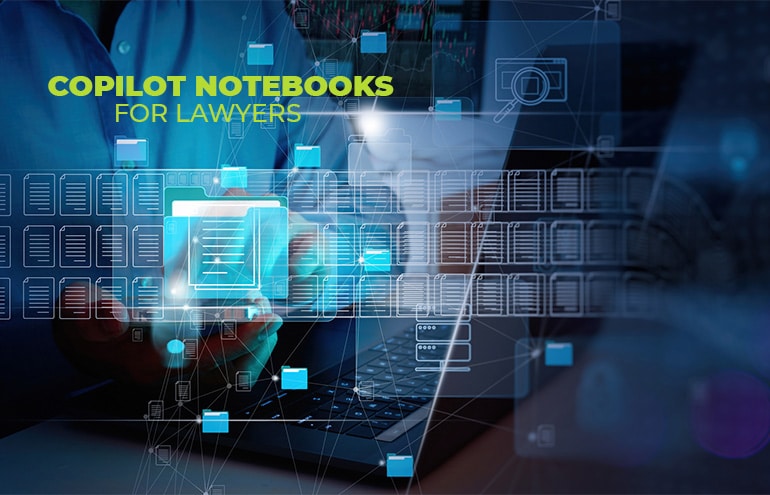
Legal work rarely suffers from too little information. The harder problem is finding the right information at the right time: the client email in Outlook, the draft in Word, the issue list in Excel, the meeting recap in Teams, and the background notes somewhere else entirely.
Copilot Notebooks gives legal professionals a focused workspace for that scattered context. Instead of asking Copilot one-off questions, you can gather the materials that matter to a task, matter, client question, training program, or internal project—and ask Copilot to work from that curated collection.
What Is a Copilot Notebook?
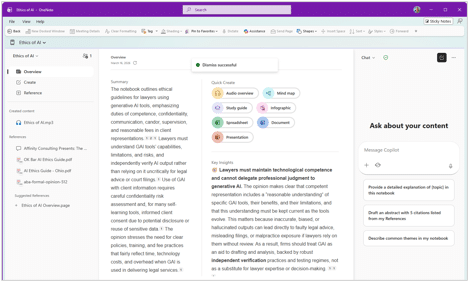
A Copilot Notebook is an AI-powered workspace inside Microsoft 365 Copilot. You add references—such as Word documents, PowerPoint decks, Excel workbooks, Copilot Pages, meeting notes, emails, sites, and other Microsoft 365 content — and Copilot uses that selected material as the basis for answers, summaries, and drafts.
If you’re familiar with Google’s Notebook LM, this is a similar idea but inside Microsoft 365.
For lawyers, the key phrase is “selected material.” Copilot Notebooks are a practical way to define the pile of information Copilot should use.
What Can You Do With It?
Once you’ve added references to a Copilot Notebook, what can you do with it?
Chat
The obvious one is that you can use Copilot Chat to ask questions, summarize, and discuss the content with the AI. Things like “Create a table of the dates and deadlines mentioned in these documents” or “Compare this incident report to the employee handbook and identify possible policy violations.”
Generate files
Copilot can use the references you’ve provided to create Word documents, Excel workbooks, PowerPoint slide decks, or even infographics.
Generate mind maps
Copilot can generate interactive mind maps based on the themes in the references. You can then click to move through the map, see how things relate to each other, and select items to learn more about them.
This feature is still evolving, but it’s got a lot of potential.
Create Audio overviews
One of the features of Notebooks that I’ll admit I initially scoffed at was the ability to create audio overviews. Essentially, it creates a “podcast” about your references with one or two AI-generated voices discussing them. You can choose voices, whether the overview is longer or shorter and if you want the style to be more professional or more casual.
At first, I thought this was mostly a gimmick, but I have found some valuable uses for it. One attorney I work with said she has to review board of director meeting minutes, so she uploads the PDFs of the meeting minutes (and other relevant documents) into a Copilot Notebook, has it generate an audio overview, then she saves that audio file to OneDrive. She can then take her dog for a walk, open the audio file on her phone, and listen to it while they walk. Clever!
5 Practical Legal Uses for Copilot Notbooks
Think of a notebook as a matter binder with an AI assistant attached. A few legal use cases:
1. Matter orientation
Collect key pleadings, correspondence, timelines, notes, and task lists so Copilot can draft a plain-English summary, flag open issues, or suggest questions for a new team member.
2. Contract review and negotiation support
Add the draft agreement, comments, prior versions, negotiation notes, and playbooks. Copilot can help surface unresolved issues, summarize positions, or draft a negotiation update.
3. Litigation chronology and issue development
Use selected pleadings, discovery correspondence, interview notes, and hearing summaries to help create a working chronology, identify factual themes, or generate follow-up questions.
4. Client updates
With recent matter notes, draft correspondence, status reports, and deadlines in one place, Copilot can help draft updates tailored to a general counsel, business executive, or legal operations audience.
5. Training and knowledge management
Use notebooks for onboarding, practice-group standards, AI policy training, or CLE preparation by collecting guides, samples, presentations, and FAQs in one workspace.
How Copilot Notebooks Differ from Copilot Chat
Think of regular Copilot Chat as a conversation and Copilot Notebooks as a workbench. Chat is useful for quick questions. A notebook is better when you want a persistent body of context you can keep returning to as the work evolves.
And, crucially, a Copilot Notebook is a walled garden. Unlike Copilot Chat, which may be grounded on a wide set of content across your Microsoft 365 and the public web, a Copilot Notebook is grounded only on the references you give it. No wandering off to Reddit to answer a legal question.
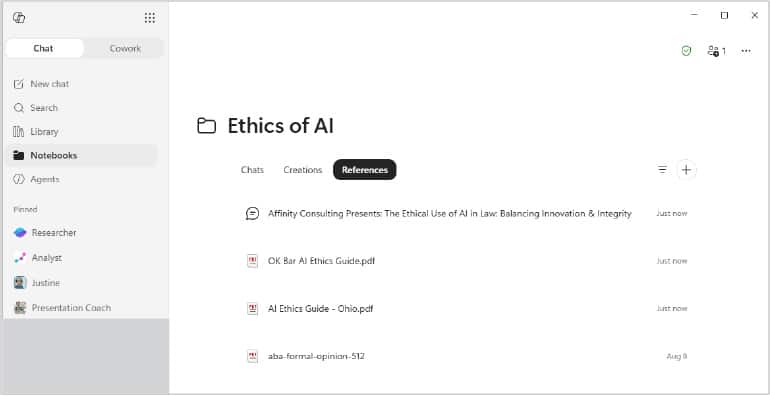
Getting Started With Copilot Notebooks for Lawyers
Start small. Pick a defined task—not an entire complex matter—and build the notebook around that task. To create a Notebook, you can go to the Microsoft 365 Copilot app or Microsoft OneNote.
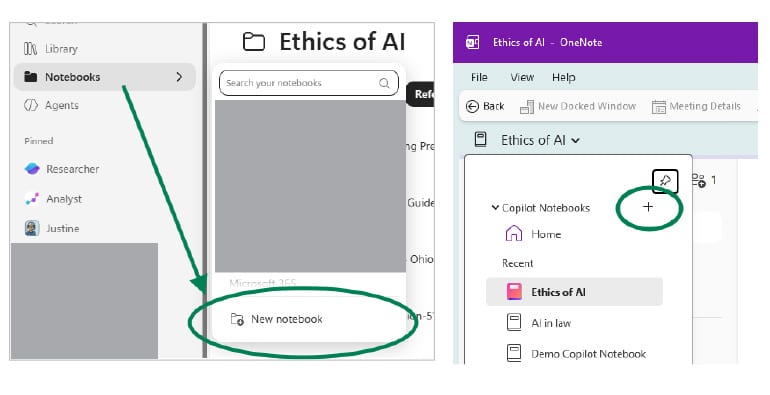
Notebook Tips
- Name the purpose clearly. “Smith contract negotiation status update” beats “Smith matter.”
- Add only relevant sources. More content is not always better.
- But add the relevant sources. Remember that the Copilot Notebook isn’t going to go out to the public web and find answers. If you want the Notebook to refer to the statute or a precedent, you’ll need to give the Notebook a copy of the statute or precedent. (Yes, PDFs are fine)
- Ask questions scoped to the task. Try “Summarize the open issues in this matter.” The answer will be grounded in only the provided materials.
Wherever you create it, once your Notebook is created, you’ll want to actually use it in OneNote — that’s where all the features are (though Microsoft seems to be changing it daily, so by the time you read this, it may be different).
A Few Cautions
The usual professional responsibility cautions still apply.
Verify important output. Never show the output of an AI to a client or the court without reviewing it first.
Curate references carefully. Stale drafts, irrelevant emails, or incomplete notes can affect the answer. Don’t just dump 100 random files into the Notebook.
The Bottom Line on Copilot Notebooks
Copilot Notebooks is not just another place to type prompts. Used well, it can bridge legal knowledge management and AI-assisted work by helping teams define the task, collect the right materials, and ask focused questions of a specifically scoped set of reference material.
Got questions about Copilot Notebooks or examples of how you’re using them? I’d love to hear them. tools — now use them!
About Affinity Consulting Group
Affinity Consulting Group inspires, enables and empowers legal teams of all sizes to work smarter, from anywhere. The company’s holistic approach incorporates people, process and technology. Affinity’s passionate, well-connected industry experts work hand in hand with you to help you better understand and optimize your business — from software to growth strategy, and everything in between.
More Microsoft Tips for Lawyers
- Build Your Own Copilot Legal Assistant — No Tech Skills Required
- Microsoft Bookings for Lawyers: Make a Date With Personal Booking Pages
- 6 Ways Microsoft Word Speech-to-Text AI Can Help You Write Faster and Better
- How to Master Page Numbers in MS Word
- How to Master Paragraph Numbering in Word for Multilevel Lists on Mac
Office 365 Training Manuals for Lawyers
Check out Affinity Consulting Group’s “Excel for Legal Professionals,” “Outlook for Legal Professionals,” and “PowerPoint for Legal Professionals.” Each manual zeros in on your practice’s needs with in-depth instructions from Affinity experts on getting the most out of your tech.
Featured Photo by Christina @ wocintechchat.com M on Unsplash.