

Ben Schorr’s tips for using Windows’ built-in dictation tools — and a few familiar add-ons — to capture work at the speed of thought.

Using Dictation Tools in Windows to Work Faster (and Smarter)
Right now, everyone is talking about AI — and for good reason. But while AI is busy drafting and summarizing, there’s another productivity lever many lawyers are underusing: their own voice.
If you spend your day drafting emails, notes, memos, or even longer documents, dictation can save serious time and reduce the wear-and-tear of typing everything yourself. The good news? If you’re on Windows, you already have several powerful dictation tools at your fingertips.
Start Simple: Windows Voice Typing
Press WIN + H and you’ll launch Voice Typing, a lightweight dictation tool built into Windows that works almost anywhere you can type — Word, Outlook, Teams, your browser.
It’s fast to launch, works across apps, and supports commands like “comma” and “new line.” It works fairly well, but only supports typing — you can’t use it to launch apps or take actions like print or save, for example.
Level Up: Windows Voice Access for Total Control
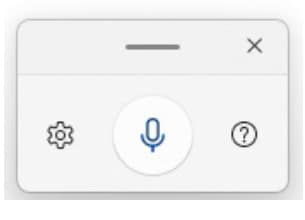
Voice Access is a full voice control system. Launch it with CTRL + WIN + S to dictate text, navigate your computer, and edit content using voice commands like “select that” or “delete line.”
It’s a bit heavier than Voice Typing, but also more capable. Also, unlike Voice Typing, you don’t need a live internet connection to use Windows Voice Access.
Built Into Your Daily Tools: Dictate in Microsoft Office
In Word and Outlook, select Dictate on the ribbon and start speaking. Or, press ALT + ` (the backtick or grave accent key, located above the Tab key). This option is ideal for longer drafting and integrates directly into your workflow. It’ll handle capitalization and punctuation for you as you go, and in my experience, the dictation is pretty accurate.
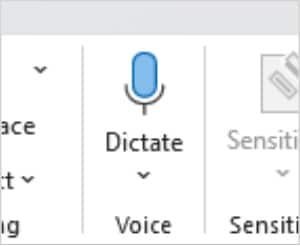
You can also use Dictate to do some light formatting and navigation. So, for example, you can tell it to bold text, you can tell it to select and delete text, but you can’t use it to do things like save or print.
These first three tools are built into Windows and Microsoft 365 at no extra charge. The last two options I can recommend are things you may need to pay for.
The Power User Option for Legal Dictation: Dragon Dictate
Dragon (from Nuance) remains the professional-grade choice for lawyers who do a lot of dictation. Its strengths include very strong recognition of legal terminology, support for custom vocabulary, automatic formatting of many legal citations, voice commands for editing and navigation, and the ability to create reusable voice commands or boilerplate for repetitive language. Some versions also support transcription from recorded audio files, which can be useful if you prefer to record first and clean up later.
That said, Dragon is not for everyone. It costs more than the built-in Windows and Microsoft 365 options, and usually makes the most sense for people who dictate frequently enough to justify the setup and training time. It is powerful — but that power comes with more complexity than casual users may want. If you only dictate occasionally, the simpler built-in tools might be a better fit.
As for getting it, Dragon is available in both locally installed and cloud-hosted versions, including editions tailored for legal work. Nuance does not always publish straightforward pricing on its own site, so you may need to contact sales or a reseller for an exact quote. Dragon Professional v16 is often around $699 as a one-time purchase, while Dragon Legal Anywhere is typically sold as an annual subscription and may run roughly $780 to $800 per user per year. Pricing varies by edition, reseller and any required setup or support.
The New Kid on the Block: Wispr Flow AI Speech-to-Text
If you want something more polished than raw dictation, Wispr Flow is worth a look. It works across Windows apps, adds punctuation automatically, removes filler words, and can clean up phrasing as you speak — making it useful for emails, notes, and first drafts when you want speed without quite so much cleanup afterward.
Wispr Flow uses a freemium model. The free Basic plan includes limited weekly dictation (currently 2,000 words per week on Mac or Windows, and 1,000 per week on iPhone), along with a custom dictionary, snippets, support for 100-plus languages, a privacy mode, and a 14-day trial of Pro. The Pro plan is about $12 per user per month when billed annually, and adds unlimited dictation across devices, Command Mode for editing, prioritized support, early access to new features, and team collaboration tools. Enterprise pricing is custom and adds admin, security and compliance controls for organizations that need them.
(Read: Ernie Svenson’s column, “Our Fingers Can’t Keep Up With AI,” for more ways to use Wispr Flow.)
When to Use These Dictation Tools for Lawyers
The biggest barrier to dictation isn’t technology — it’s habit. These tools can help you reclaim time and work more naturally.
- Use Voice Typing for quick, lightweight dictation.
- Use Voice Access when you want hands-free control of your PC.
- Use Dictate in Microsoft Office when you’re already drafting in Microsoft 365.
- Opt for Dragon if dictation is a major part of your workflow and you need maximum control.
- Try Wispr Flow if you want cleaner, more polished text with less cleanup afterward.
You already have the tools — now use them!
About Affinity Consulting Group
Affinity Consulting Group inspires, enables and empowers legal teams of all sizes to work smarter, from anywhere. The company’s holistic approach incorporates people, process and technology. Affinity’s passionate, well-connected industry experts work hand in hand with you to help you better understand and optimize your business — from software to growth strategy, and everything in between.
Dictation Tools for Lawyers FAQ
The best tool depends on your specific volume of work. For quick emails and short notes, the built-in Windows Voice Typing feature (WIN + H) is effective and free. For advanced legal drafting that requires heavy citation formatting and complex terminology, consider dedicated legal dictation software like Dragon Legal.
Data privacy depends entirely on the tool you use. Built-in features like Windows Voice Access process your voice locally on your computer and do not require an internet connection, making them more secure than cloud-based tools that send audio data to external servers for processing. Always review the vendor’s data security and compliance terms before dictating sensitive client information.
Traditional dictation tools require you to speak every comma and period aloud, transcribing your exact words. Newer AI-powered speech-to-text tools, such as Wispr Flow, can automatically strip out filler words, add smart punctuation, and smooth out your phrasing in real-time, delivering a polished first draft with significantly less manual editing required.
Yes, the built-in Dictate feature is available in Microsoft Office for Mac. (In Word, you can click the microphone icon on the Ribbon’s Home tab and start speaking.) Also, for simple voice-to-text tasks, Microsoft Office supports Apple Dictation in Office apps. Microsoft Voice Access is for Windows systems, but you can set up Mac’s systemwide voice command and voice-to-text features under the Accessibility settings.
More Microsoft Word Tips for Lawyers
- Build Your Own Copilot Legal Assistant — No Tech Skills Required
- Microsoft Bookings for Lawyers: Make a Date With Personal Booking Pages
- 6 Ways Microsoft Word Speech-to-Text AI Can Help You Write Faster and Better
- How to Master Page Numbers in MS Word
- How to Master Paragraph Numbering in Word for Multilevel Lists on Mac
Office 365 Training Manuals for Lawyers
Check out Affinity Consulting Group’s “Excel for Legal Professionals,” “Outlook for Legal Professionals” and “PowerPoint for Legal Professionals.” Each manual zeros in on your practice’s needs with in-depth instructions from Affinity experts on getting the most out of your tech.
Featured Photo by Christina @ wocintechchat.com M on Unsplash.