


Ben Schorr explains how attorneys can use Microsoft Copilot Agent Builder to create custom, high-value legal assistants, or agents. Just give yourself 15 minutes.

Table of contents
Microsoft Copilot is good at answering questions, summarizing documents, and drafting emails — but what if it could do those things tuned specifically to your practice, already familiar with your firm’s preferred language, your clients and your workflows? That is what Copilot agents are for. And you do not need to write a single line of code to build one.
Note: To use Copilot Agent Builder, you will need a Microsoft 365 Copilot license. If you are not sure whether your firm has one, check with your IT department or administrator.
What Is a Copilot Agent?
Think of a Copilot agent as a specialist version of Copilot configured for a specific job. You give it a name, a role, instructions and, optionally, some documents to draw from.
Here are a few examples relevant to legal work.
- A document review legal assistant that evaluates uploaded contracts or agreements against a firm-provided playbook, flagging issues and summarizing its findings for the reviewing attorney.
- A matter-opening checklist agent that walks a paralegal through the steps your firm requires every time a new file is created.
- A client communication helper that drafts correspondence in the tone and style your firm prefers, so you are not constantly editing AI drafts to sound like yourself.
Where to Find Agent Builder
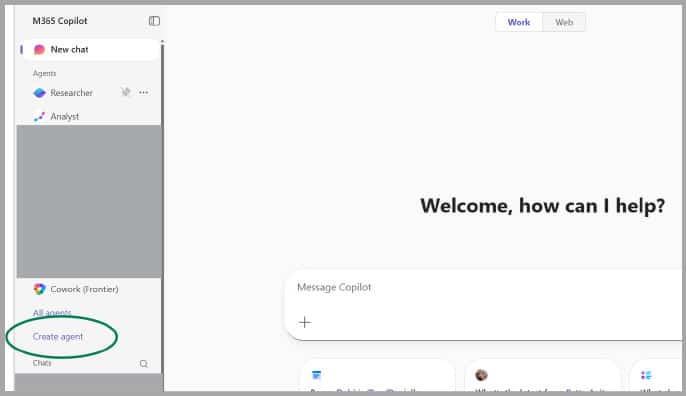
In Microsoft 365 Copilot chat, you’ll find Agent Builder on the navigation pane on the left side. Just look for Create agent (in some experiences, it may say “New agent”):
Building Your First Agent: A Step-by-Step Walk-Through
Let’s walk through building a practical, high-value Copilot legal assistant: a document review assistant that evaluates contracts and agreements against your firm’s own review playbook. The same steps apply to any agent you want to build.
Step 1: Give Your Copilot Legal Assistant a Name and a Purpose
Click Create agent and you’ll land in the Agent Builder interface. It looks a lot like a form. The first field asks for a name. Pick something descriptive — “Contract Review Assistant,”,“NDA Reviewer” or “Lease Review Checklist” are all good examples.
A clear name matters because this is what colleagues will see when they go to choose an agent.
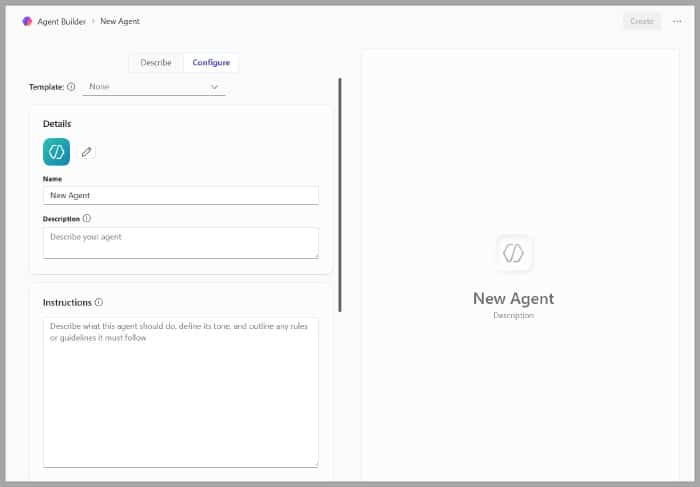
Next, write a short description of what the agent does. Think of this as the label on the can. It doesn’t affect the agent’s behavior, but it helps people understand what it’s for.
Step 2: Write the Agent Instructions
This is the most important part, and it doesn’t need to be complicated. The instructions field is where you tell the agent what its job is, how it should behave, and what it should and should not do.
For our document review assistant, something like this works well:
You are a contract review assistant for a law firm. When a user uploads a document, review it carefully against the firm’s review playbook provided in your knowledge base. Identify any provisions that are missing, non-standard, or that deviate from the firm’s preferred positions. For each issue you find, note the section of the document where it appears, explain why it is a concern, and suggest how it might be addressed. Present your findings as a structured summary, organized from highest to lowest risk. Do not provide a final legal opinion or tell the user whether to sign or reject the document — your role is to surface the issues so the reviewing attorney can make that call.
Notice a few things about those instructions. They tell the agent what to do, how to structure its output (organized by risk level), and — crucially — where its lane ends. The agent surfaces issues; the attorney makes the call.
Step 3: Add Knowledge for Your Copilot Legal Assistant
This is where our document review agent really comes to life. You can give your agent documents to draw from (things stored in your SharePoint site or OneDrive), and it will consult those documents when forming its responses.
For a document review assistant, the most important thing to upload is your firm’s review playbook: the document (or set of documents) that describes your preferred positions on common contract provisions.
This might include things like:
- Acceptable and unacceptable indemnification language
- Your standard positions on limitation of liability caps
- Required and prohibited governing law or jurisdiction clauses
- Provisions that must always be present in agreements of a given type
If the playbook already lives on your SharePoint or OneDrive, Agent Builder can connect to it right where it is — no need to move or re-upload anything.
Step 4: Set the Conversation Starters
Agent Builder lets you define a few suggested prompts that appear when someone first opens the agent — shortcut buttons that get people started without having to think about what to type. For a document review agent, good starters might be: “Review an uploaded contract” or “I have an NDA I’d like you to evaluate.”
Step 5: Test and Publish Your Agent Instructions
Before sharing, use the preview pane on the right side of the screen to test the agent yourself. Try realistic scenarios — upload a sample contract, ask edge-case questions, see if it stays in its lane. Most agents need a round or two of tweaks before they’re ready.
When you are satisfied, click Create. You can make it available to just yourself, to specific colleagues, or to the whole organization.
Four Tips for Writing Better Agent Instructions
The instructions you write are the heart of your agent. Here are a few things that make a real difference:
- Be specific about the role. “You are a client intake assistant for a small family law firm” gives the agent more useful context than “You help clients.” The more precisely you define the role, the more consistently the agent will stay in that lane.
- Describe the tone. Do you want the agent to be warm and conversational? Formal and precise? Brief and direct? Say so. “Use a professional but approachable tone, as if speaking to someone who may be anxious about a legal matter” is the kind of instruction that shapes the entire experience.
- Include guardrails. For legal work, it is usually important to be explicit about what the agent should not do. “Do not provide legal advice or opinions on the merits of any matter” is a sentence worth including in almost every agent your firm builds.
- Tell it what to do when it doesn’t know. Instruct your agent to say so honestly when a question falls outside its scope or when it can’t verify the information with high confidence.
What About Other AI Tools for Legal Work?
ChatGPT offers something similar with Custom GPTs, and legal-specific tools are entering this space as well. Some offer more advanced options for firms with dedicated technical resources. But if you are already on Microsoft 365 with Copilot licenses, Agent Builder keeps everything inside your existing environment — your data stays in your Microsoft tenant, your agents connect directly to SharePoint and OneDrive, and your IT team has one less vendor to manage.
Take a Bite Out of Repetitive Work
Agent Builder will not replace the judgment that makes a great attorney — but having an agent can take a real bite out of the repetitive, procedural work that fills up the day. If your firm has Microsoft 365 Copilot, you already have access to it. Your first Copilot legal assistant takes about 15 minutes to build.
That is a pretty good return on an afternoon experiment.
About Affinity Consulting Group
Affinity Consulting Group inspires, enables and empowers legal teams of all sizes to work smarter, from anywhere. The company’s holistic approach incorporates people, process and technology. Affinity’s passionate, well-connected industry experts work hand in hand with you to help you better understand and optimize your business — from software to growth strategy, and everything in between.
More Tech Tips From Affinity
- Outlook Productivity Tips for Lawyers: 3 Quick Steps to Boost Productivity
- Metaprompting for Lawyers: The Smart Way to Craft Smarter Prompts
- Cybersecurity Best Practices for Law Firms
- Microsoft Bookings for Lawyers: Make a Date With Personal Booking Pages
- Cut Through the Clutter: How Copilot Helps You Get a Handle on Your Inbox
- Legal AI Myths: Separating Fact from Fiction in Your Law Firm
- Law Firm Tech Cleanup: 6 Steps to Boost Efficiency and Cut Costs Now
- 15 Secure Collaboration Hacks Every Lawyer Should Know
- 6 Ways Microsoft Word Speech-to-Text AI Can Help You Write Faster and Better
- PDF Bookmarks: The Secret to Quickly Creating User-Friendly Documents
- Never Forget to Follow Up: Using Outlook Email Reminders
- Templates to Create Model Documents That Save Your Law Firm Tons of Time
- Paperless Law Practice: How to Boost Efficiency, Cut Costs and Improve Client Satisfaction
- Take Your Practice to the Next Level With Document Automation Tools
- How to Master Page Numbers in MS Word
Office 365 Training Manuals for Lawyers
Check out Affinity Consulting Group’s “Excel for Legal Professionals,” “Outlook for Legal Professionals,” and “PowerPoint for Legal Professionals.” Each manual zeros in on your practice’s needs with in-depth instructions from Affinity experts on getting the most out of your tech.
Licensed under the Unsplash+ License