


Bookings is one of the Microsoft 365 features most lawyers don’t even realize they have. This scheduling tool can be a real time-saver for your practice if you use it well. Let’s start by focusing on how to set up personal Booking pages.

Table of contents
What Is Microsoft Bookings?
Bookings creates a public webpage that lets people pick a time on your calendar and book a meeting with you. It syncs with your Outlook calendar, so it won’t offer any times when you’re already booked. Plus, you can configure it only to allow certain blocks of time if you want to. If, say, you don’t want anybody to be able to book you on Tuesday afternoons, regardless of what your Outlook calendar says, Bookings can exclude those afternoons.
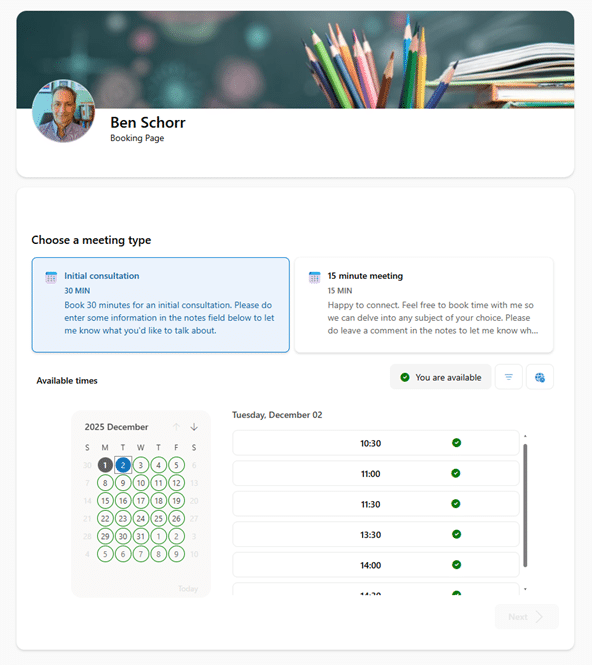
One of the most useful things about Microsoft Bookings for lawyers is that it helps you manage initial consultations. Some firms and attorneys include links to their personal Booking pages on their public website. Many users will add a link to their email signature that says something like, “Book time to meet with me.”
You can also create a shared Booking page for your entire firm (or just a practice area) that lets folks schedule with various staff or attorneys, and for more advanced services. It would take a much longer article to get into all the details of that, but if it’s something that interests you, I encourage you to look into it.
For this article, we’ll focus on personal Booking pages.
Types of Meetings in Microsoft Bookings
You can create different meeting types with different duration times on your Booking page for people to select from.
Public Meetings
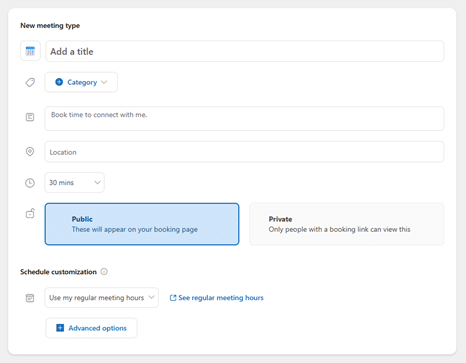
A Public meeting type is one that will appear on your public Booking page and that anybody can select. Usually, I see people add 15-minute introduction meetings or 30-minute initial consultations there. You can have as many different kinds as you like, and you can configure custom durations, but resist the temptation to create separate meeting types for every possible meeting. Somebody faced with a menu of 40 different meeting types may just be confused.
Just a handful of meeting types and durations is probably best.
Private Meetings
While I’m fine with letting strangers book 15 minutes on my calendar for an introduction, I’m less excited about somebody cold-booking an hour of my time. I do still like the convenience of them selecting a time that works for them without having to go back and forth about it, though, and that’s where Private meeting types come in.
Private meeting types don’t show up on your public page. You have to send the person a link to use them.
The way that usually works in my regular day is I’m having an email conversation with someone, and we determine that they need to book an hour with me. I can then send them the link to the private one-hour meeting type, and they can choose a time that suits them.
Creating a Meeting Description
The default description in the “New meeting type” screen (“Book time to connect with me”) is OK, but not very inspiring or informative. Consider rewriting that to make it clearer what the meeting is about.
Also, on personal Booking pages, when the person books a meeting, the Notes field on their reservation is optional. That means they could book a meeting without giving you any indication what it’s about — I add a prompt in the description encouraging them to let me know what they want to discuss.
Customize Your Schedule in Bookings
Microsoft Bookings is designed to respect your calendar. By default, it will just go off your regular schedule … whatever you’ve told Outlook your working hours are. For most attorneys, that default is Monday through Friday, from 9 to 5.
However, you can choose to have Bookings make a different set of times by selecting Schedule customization.
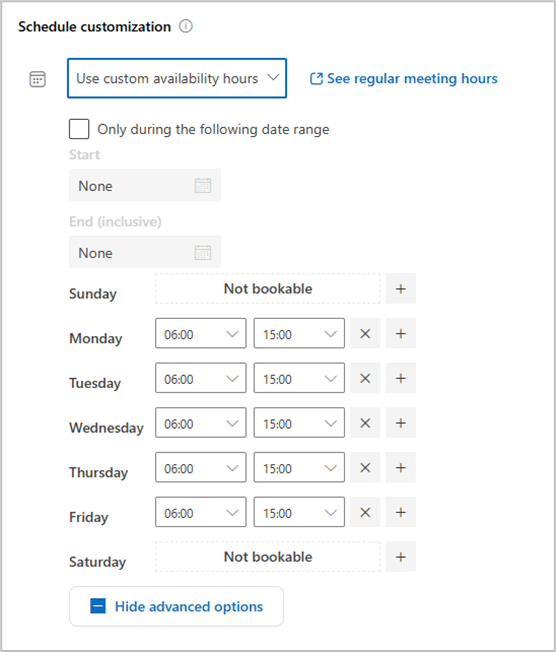
This screen is where you can tell Bookings that you don’t care what your Outlook calendar says, you’re not available to be booked on Wednesday mornings, or Thursday from 1-3 p.m., or whatever you prefer.
Get More Out of Bookins With These Quick Tips
Here are a few added tips that might help you get more out of Bookings.
- Set a category. When you create a meeting type, you can select an Outlook category to apply to meetings scheduled with it. That helps you see, at a glance, items on your calendar that are scheduled through Bookings.
- Add some buffer time. Under Advanced Options for the meeting type, you can tell Bookings to add 5 minutes before or after the meeting as a buffer. If your calendar is busy, this can help prevent the kind of situation where you’re booked back to back to back without a chance to refill your drink or visit the restroom!
- Set some lead time. Also under Advanced Options is the ability to configure lead time. This means that people can’t use Bookings to reserve time with you on short notice, leaving you no time to prepare. You can also set a maximum lead time if you don’t want people booking appointments with you two years from now.
What About Calendly for Scheduling?
Calendly, which is similar to Bookings, offers a few advantages over Bookings, namely better branding options and wider integration with other calendar services and CRMs. If you need to do advanced team scheduling with round-robin or pooled availability, you might like Calendly better.
But … Calendly is probably going to cost you extra money — usually $10 or $16 per person, per month, depending on which plan you need.
My advice: Take a look at Microsoft Bookings first, since you already have the scheduling tool with 365. If Bookings does everything you need for your law practice, then you’re golden. If you find that Bookings comes up short, then Calendly might be your answer.
About Affinity Consulting Group
Affinity Consulting Group inspires, enables and empowers legal teams of all sizes to work smarter, from anywhere. The company’s holistic approach incorporates people, process and technology. Affinity’s passionate, well-connected industry experts work hand in hand with you to help you better understand and optimize your business — from software to growth strategy, and everything in between.
More Tech Tips From Affinity
- Cut Through the Clutter: How Copilot Helps You Get a Handle on Your Inbox
- Microsoft Copilot 2025: It’s Better 1 Year Later
- Legal AI Myths: Separating Fact from Fiction in Your Law Firm
- Law Firm Tech Cleanup: 6 Steps to Boost Efficiency and Cut Costs Now
- 15 Secure Collaboration Hacks Every Lawyer Should Know
- 25 Quick Tech Tips to Try in 2025
- 6 Ways Microsoft Word Speech-to-Text AI Can Help You Write Faster and Better
- PDF Bookmarks: The Secret to Quickly Creating User-Friendly Documents
- Never Forget to Follow Up: Using Outlook Email Reminders
- Templates to Create Model Documents That Save Your Law Firm Tons of Time
- Paperless Law Practice: How to Boost Efficiency, Cut Costs and Improve Client Satisfaction
- Take Your Practice to the Next Level With Document Automation Tools
- How to Master Page Numbers in MS Word

Microsoft Word for Legal Professionals
Want to work faster? For in-depth information and instructions on getting the most from Word, order Affinity Consulting Group’s hands-on digital manual “Microsoft Word for Legal Professionals.” Individual and site licenses are available for download in the Attorney at Work bookstore.
Office 365 Training Manuals for Lawyers
Check out Affinity Consulting Group’s “Excel for Legal Professionals,” “Outlook for Legal Professionals” and “PowerPoint for Legal Professionals.” Each manual zeros in on your practice’s needs with in-depth instructions from Affinity experts on getting the most out of your tech.
Licensed under the Unsplash+ License