


Quick tips for drafting faster in Microsoft Word using styles, templates and the Quick Access toolbar alongside your favorite AI tools.

Do you spend more time than you’d like drafting documents? If so, you’re not alone. Even if you are using Copilot and other Gen AI tools, these three tips for using Microsoft Word’s core features can shave hours off your document drafting process.
Table of contents
1. Control Your Formatting With Styles
Did you know that Word uses Styles whether you want it to or not? That’s right. Word is using styles without your knowledge or consent. In fact, Styles are the engine behind features like the Navigation Pane (which is even more useful now for complex document structures) and automated Tables of Contents.
Styles can save significant time when it comes to formatting and will ensure that your documents are formatted consistently throughout.
Still, despite its many benefits, Word’s use of styles probably drives you a little crazy. If you’ve ever had a random font appear in your document, you have styles to thank.
The issue isn’t that styles are broken; it’s that not using them intentionally causes problems. Styles are such an excellent formatting tool that Word assumes you’re going to use them to control your document’s formatting. When you don’t, things start to get a little wonky.
Using styles isn’t hard. The key is modifying a document’s existing styles to meet your needs (including to match your branding) or creating new styles that do. Every Word document has more than 200 styles built into it. You read that right — over 200 styles in every Word document. Most of the time, it’s easiest to modify one of those pre-existing styles. Start with the Normal style; it contains your default formatting. Then modify the heading and body styles to meet your needs.
AI Tip: While Copilot is a tool for content generation, Styles and Templates (see below) are the tools you need for structure and compliance. The final output will be better when the three are used together.
Related: “Resetting Default Heading and Body Styles in Microsoft Word.”
2. Draft From Templates
You need to draft a document for a new client. What do you do? If you dig into your files, find a document you drafted last month for a similar client and “save as” a new document, you are opening the door to several potential problems. For one, it’s too easy to leave the wrong name or pronoun in the document, or to forget things you might have modified for just that client.
A template acts as a master document that includes all of your verified boilerplate language and commonly used optional provisions. Text that changes, like client names, is marked in a way that makes it easy to find and replace — such as placing it inside brackets. By design, templates prevent you from accidentally overriding your base language: Opening a template file (.dotx) automatically launches a new, unsaved document (docx). This can save you a lot of heartache from accidentally saving over your template when you draft a document for a client.
When you double-click on a document, it’s easy to make edits to the original and override the prior version. When you double-click on a template, a new document opens. The new document contains the same text and formatting as the template, you can’t accidentally override the template with the save button.
As of 2026, templates serve as the foundation for modern AI tools. To get the most out of your drafting process:
- Standardize Your File Format: When creating a template, save it with the “.dotx” file extension (a template) to protect your source language. For cloud-based environments, store these in a centralized, read-only SharePoint or OneDrive folder so your team is always accessing the “source of truth.”
- Use Placeholders Effectively: Clearly mark variable text—such as
[CLIENT NAME]or[DATE]—using brackets or grey-highlighted content controls. This makes it easier to scan through a document before finalizing it. - Create “AI-Ready” Templates: If your firm is using Microsoft Copilot, keep in mind that AI drafts best when it has a clear structure to follow. If your templates are built with well-defined Styles (Heading 1, Heading 2, etc.), Copilot can better understand the document’s hierarchy, making it much more accurate when it suggests revisions or inserts new clauses into your template.
Pro-Tip: Create a folder named “Master Templates” and move your most-used documents there, save them as .dotx files, and train your team to double-click these files first.
Related: “Using Microsoft Word Templates to Create Model Documents That Save Time and Improve Accuracy”
3. Work from the Quick Access Toolbar
The ribbon interface works great if you’re formatting a document with styles or using basic formatting tools. It quickly falls down, though, if you’re using some of the most powerful formatting settings, working with sections, or using cross-references. Switching back and forth between ribbons or opening up the font and paragraph formatting dialogs can get irritating fast.
That’s where the Quick Access Toolbar can help. When you click on a different tab in Word, the ribbon changes, but the Quick Access Toolbar stays the same. Customize the Quick Access Toolbar with the tools you use most often, and you’ll always have one-click access to them.
With Microsoft 365 interface’s continuous updates, one-click access to specific tools (like “Cross-reference” or “Table Properties”) prevents you from getting lost in the changing ribbon tabs. Add tools you can’t find on the home ribbon to minimize how often you need to switch ribbons or dive into the formatting dialogs. You’ll save yourself time and frustration.
Tip: Adding frequently used commands like “Track Changes” or “Compare Documents” to the QAT saves time switching between the Review and Home tabs.
Get All the Microsoft Word Tips
Want to learn more about drafting faster? Check out Affinity Consulting Group’s Microsoft Word for Legal Professionals, available for download in the Attorney at Work bookstore, or opt for a license for all your attorneys. A version for Mac users is available as well: “Word for Mac for Legal Professionals” – 2019 and Office 365.
About Affinity Consulting Group
Affinity Consulting Group inspires, enables, and empowers legal teams of all sizes to work smarter, from anywhere. The company’s holistic approach incorporates people, process, and technology. Affinity’s passionate, well-connected industry experts work hand in hand with you to help you better understand and optimize your business—from software to growth strategy, and everything in between.
©iStockphoto.com
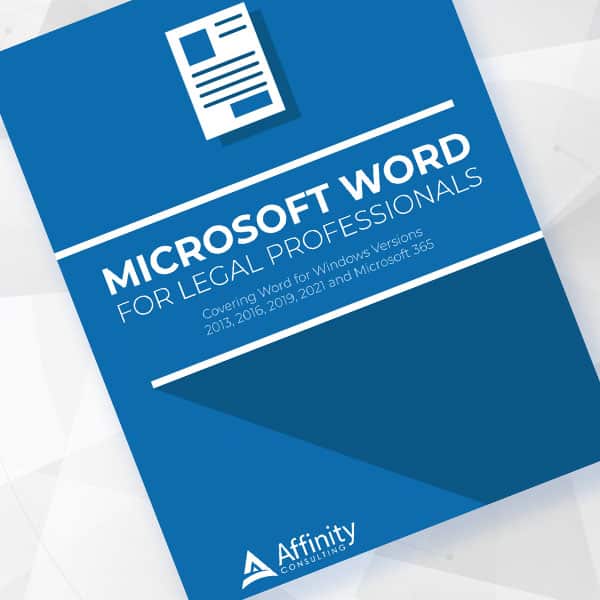
Microsoft Word for Legal Professionals
Want to work faster? For in-depth information and instructions on getting the most from Word, order Affinity Consulting Group’s hands-on digital manual “Microsoft Word for Legal Professionals.” Individual and site licenses are available for download in the Attorney at Work bookstore.